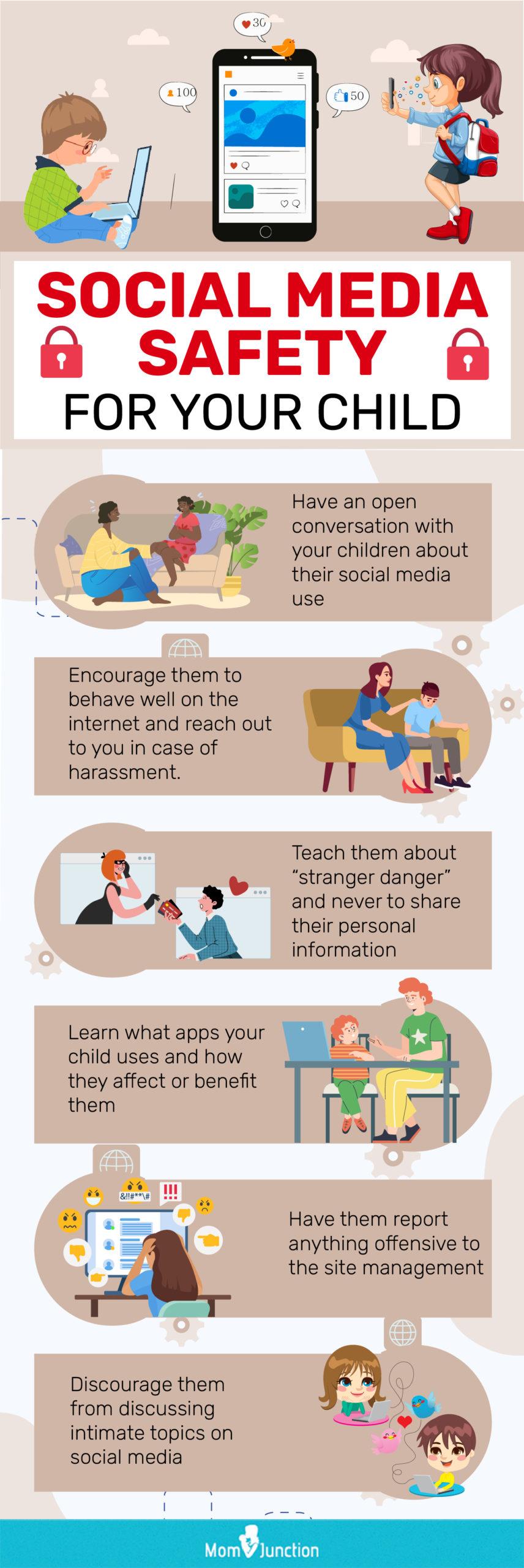
Why Visual Communication Shapes Early Digital Literacy
For young children navigating tablets, school Chromebooks, and family computers, traditional text-heavy safety rules often fail to resonate. Translating complex cybersecurity and privacy concepts into a universal visual language is where an it safety pictogram for kids proves invaluable. By utilizing recognized symbols for secure passwords, personal data privacy, and safe click habits, educators and parents can bridge the cognitive gap for early learners. Guidance from organizations like ConnectSafely and the Cybersecurity and Infrastructure Security Agency emphasizes that building early digital resilience requires meets kids at their developmental level. When children recognize a padlock, a shield, or a warning hand, they internalize protective instincts long before they encounter sophisticated online risks. Related guide: Cctv Introduction Lesson For Grade 4.
💡 Educational Key Takeaways:
- Core Skill: Structured It Safety Pictogram For Kids focused on developing pencil grip, stroke control, and early literacy/math confidence.
- Target Scope: Suited for homeschoolers, preschool, kindergarten, and elementary learners.
- Best Recommendation: Practice 10–15 minutes daily with ergonomic writing tools to reinforce muscle memory without hand fatigue.
Decoding Digital Symbols: Recognizing Threats and Guardrails
Adults often assume children understand what a pop-up warning or a privacy setting actually means. To demystify these digital components, educators rely on structured visual guides that outline common vulnerabilities alongside concrete physical or device-level safeguards. Reviewing these elements helps both teachers and parents maintain a unified front across school and home environments.
| Setting / Context | Common Vulnerability | Practical Safeguard |
|---|---|---|
| Home Tablets & Phones | Accidental in-app purchases or downloads from untrusted app stores. | Use an it safety pictogram for kids on a laminated fridge chart to signal “ask an adult before downloading.” |
| School Chromebooks | Entering passwords where peers can view keystrokes or share logins. | Pair visual login reminders with age-appropriate Internet and Digital Safety modules. |
| Chat & Gaming Lobbies | Sharing real names, locations, or school names with strangers. | Reinforce the “red hand” stop sign symbol representing private personal data boundaries. |
Translating Symbols into Everyday Classroom and Family Habits
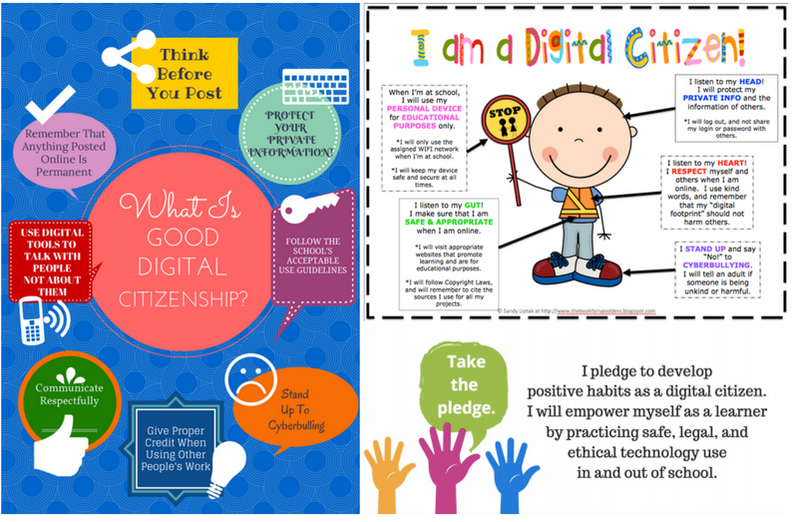
Introducing graphic safety icons is only effective when paired with consistent daily routines. Schools and families can implement these cues by printing out visual guides that correspond with lessons found in Worksheets designed for interactive student practice. Establishing a shared charging station in a common household area removes devices from unsupervised bedrooms at night. Furthermore, educators can post large visual reminders next to classroom computer carts. When a student encounters a suspicious link or an uncomfortable message, the response workflow should be entirely shame-free: pause, close the lid, and show an adult immediately. Consistency between home device rules and school filters ensures that children receive the exact same safety messaging everywhere they go.
Overcoming Workarounds and Managing Student Pushback
As children grow more tech-savvy, they frequently attempt to bypass content filters, guess peer passwords, or hide browser history. Overly punitive restrictions often drive these behaviors underground, making students less likely to report accidental exposure to inappropriate content or cyberbullying. Instead of relying solely on heavy-handed blocks, pair technical guardrails with regular, calm check-ins. If a child tries to circumvent a rule, use the moment as an educational pivot rather than a disciplinary crisis. Discuss why the specific safety symbol exists and how it protects their personal well-being, transforming a moment of frustration into a valuable lesson in digital citizenship and mutual trust.
Frequently Asked Questions From Educators and Parents
At what age can children start understanding digital safety symbols?
Children as young as preschool and kindergarten can grasp basic safety pictograms, such as a stop sign for strangers or a shield for private information. Visual literacy often develops much faster than reading comprehension, making icons an ideal early intervention tool.
How do I integrate these safety visuals into existing lesson plans?
Teachers can incorporate graphic elements into morning meetings, technology orientation weeks, and interactive activities found within Online and Digital Safety resource hubs. Keeping the icons consistent across printouts, slide decks, and classroom posters reinforces memory retention.
What should I do if a child encounters a scary pop-up despite visual warnings?
Reassure the child immediately that they are not in trouble for seeing the popup. Teach them to freeze, step away from the keyboard, and notify an adult so the IT department or parent can clear the browser cache safely.
Empowering the Next Generation of Digital Citizens
Guiding children toward safe online habits requires patience, consistent communication, and the right educational tools. By utilizing clear visual cues and practical workflows, we can empower students to navigate the digital world with confidence and critical thinking. To access more downloadable materials, lesson plans, and guidance, visit us today at SafeWiredSchools.org.
Visual Reference Gallery