Introduction
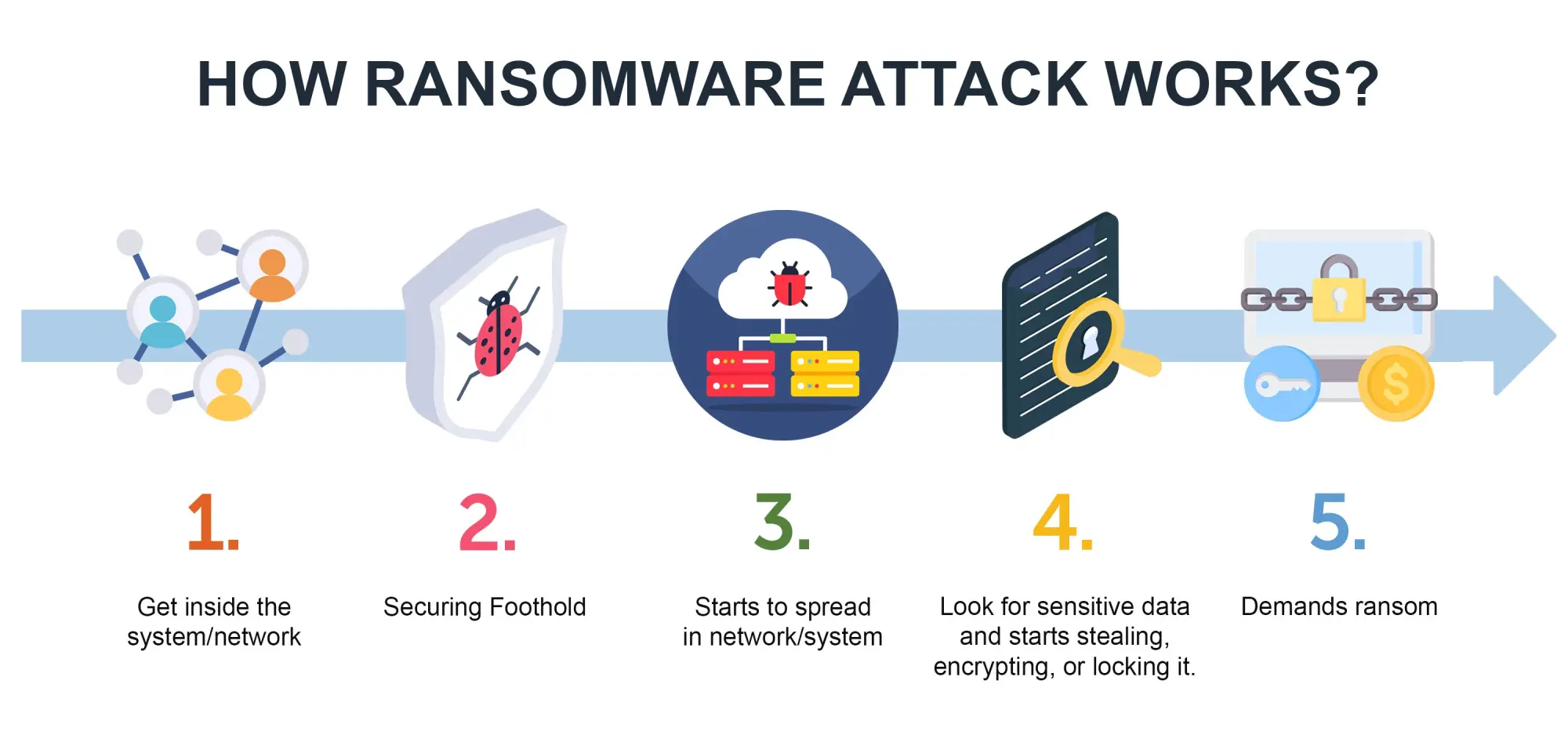
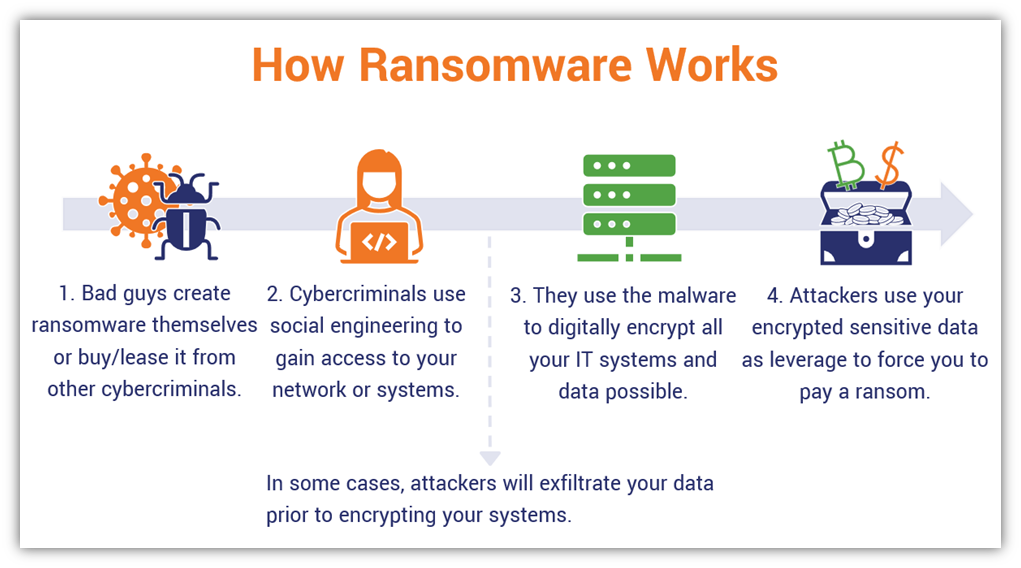
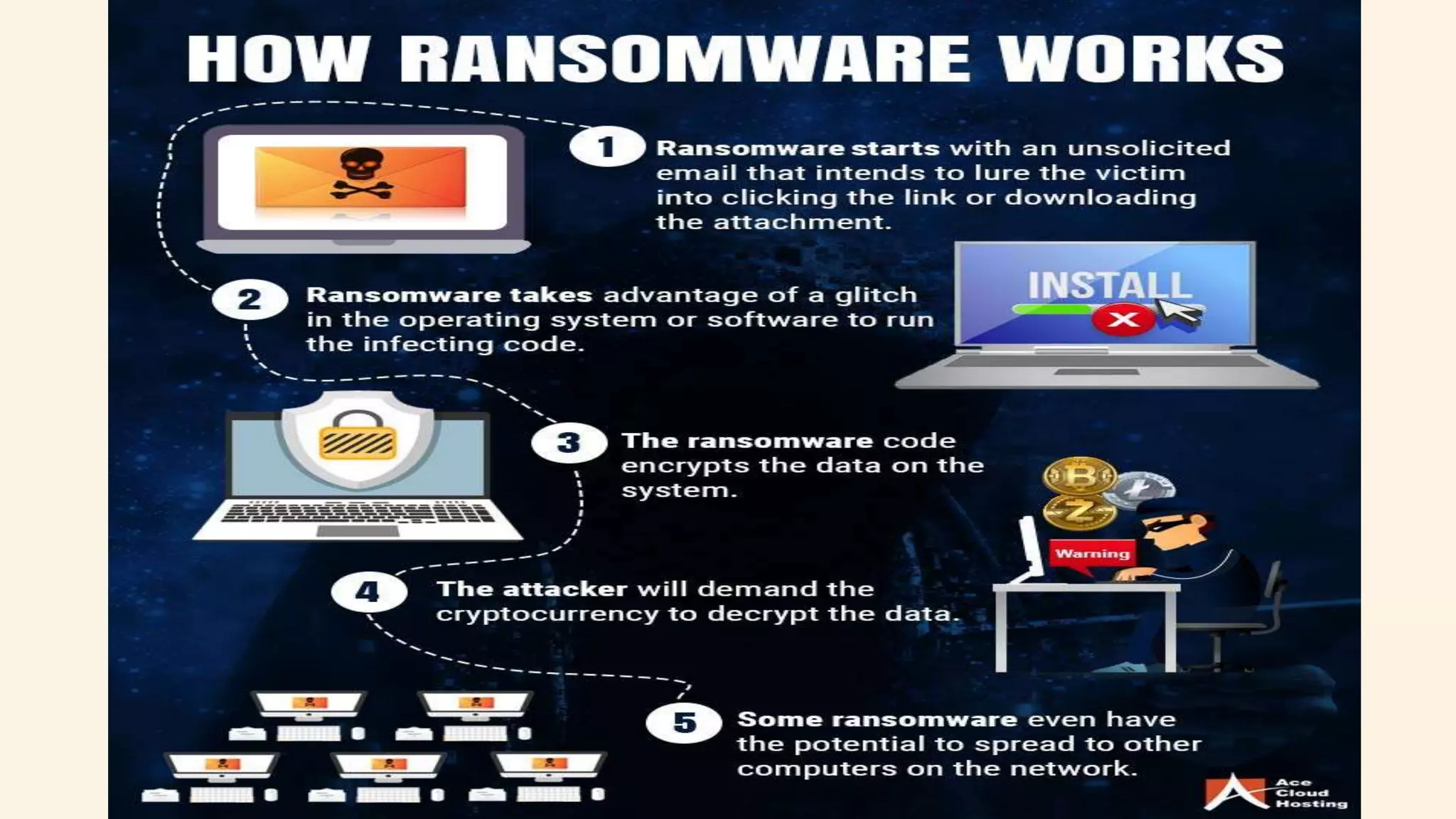
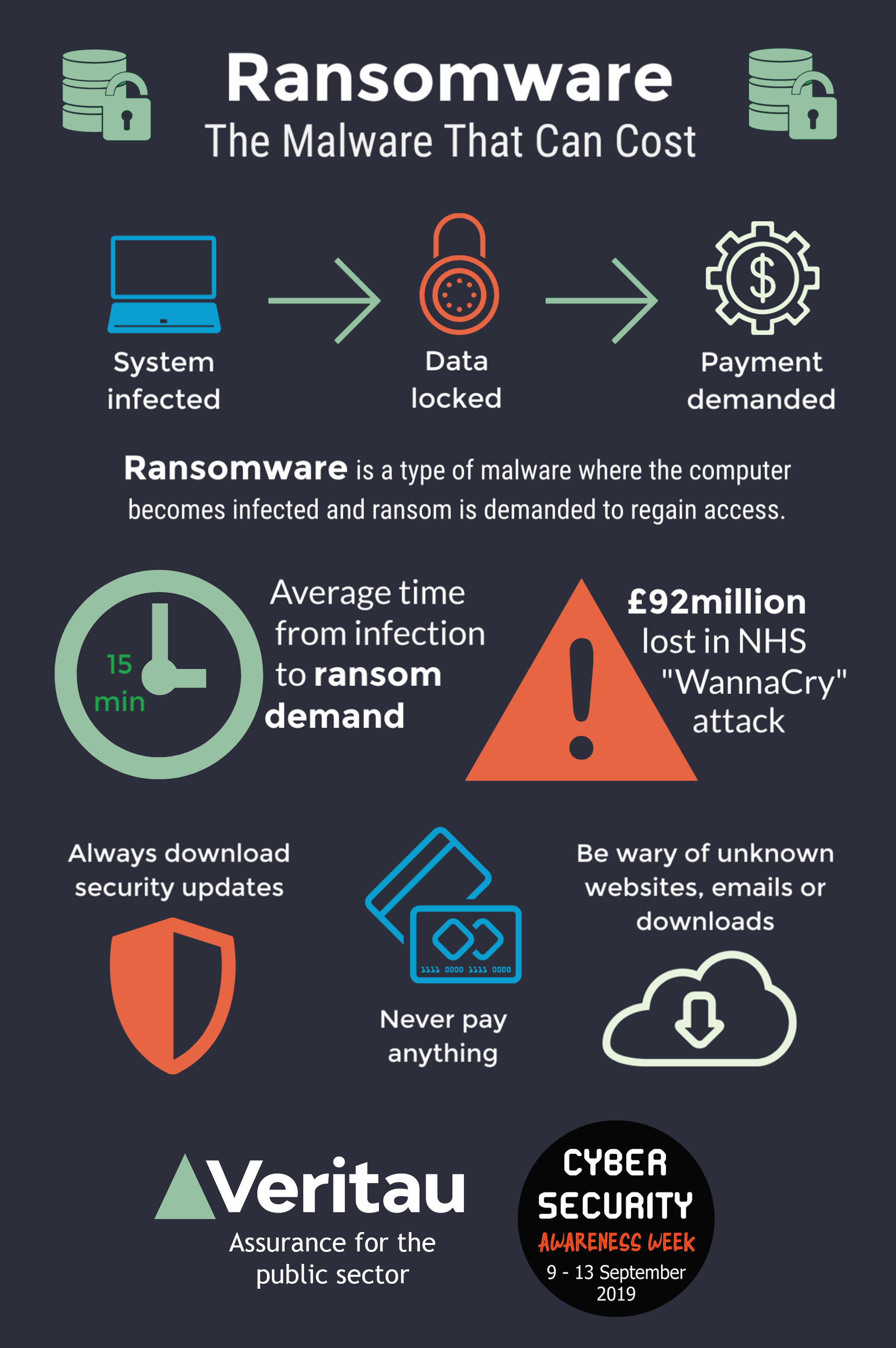
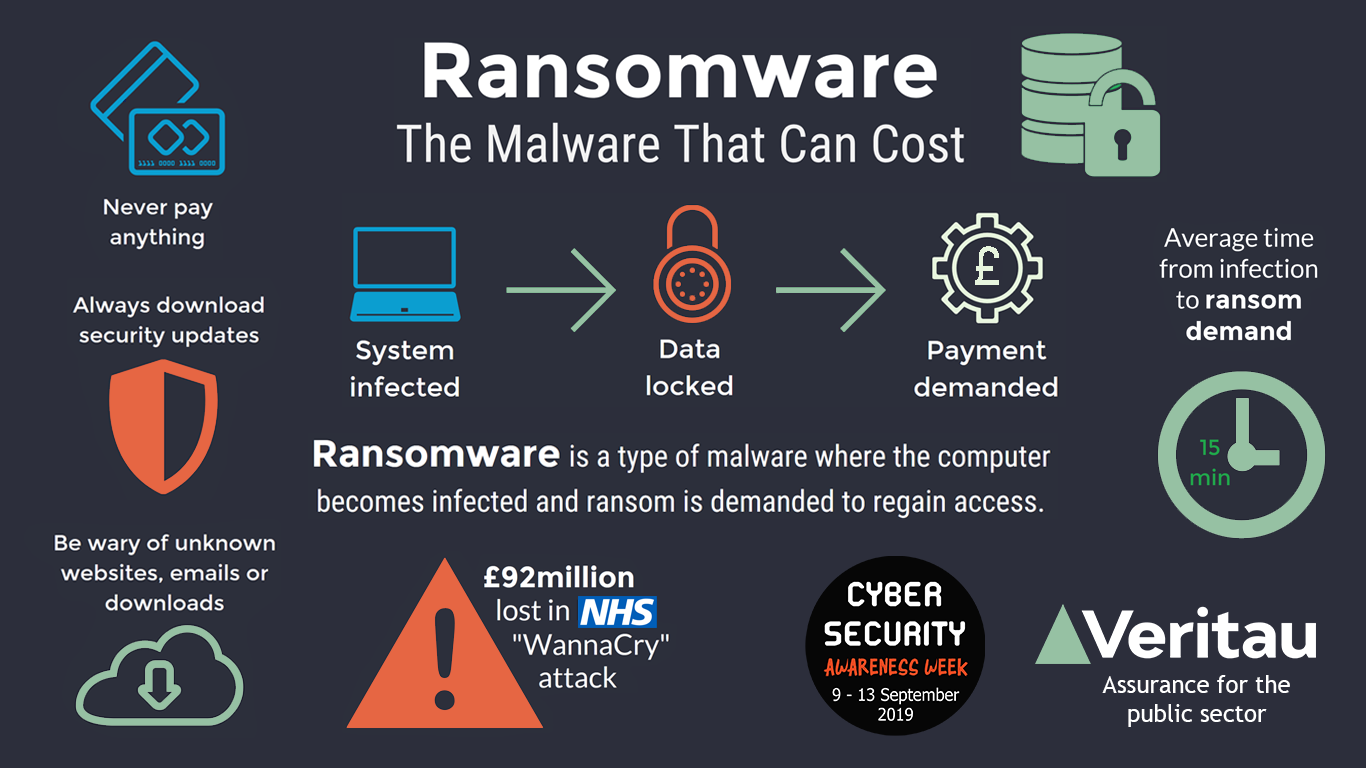
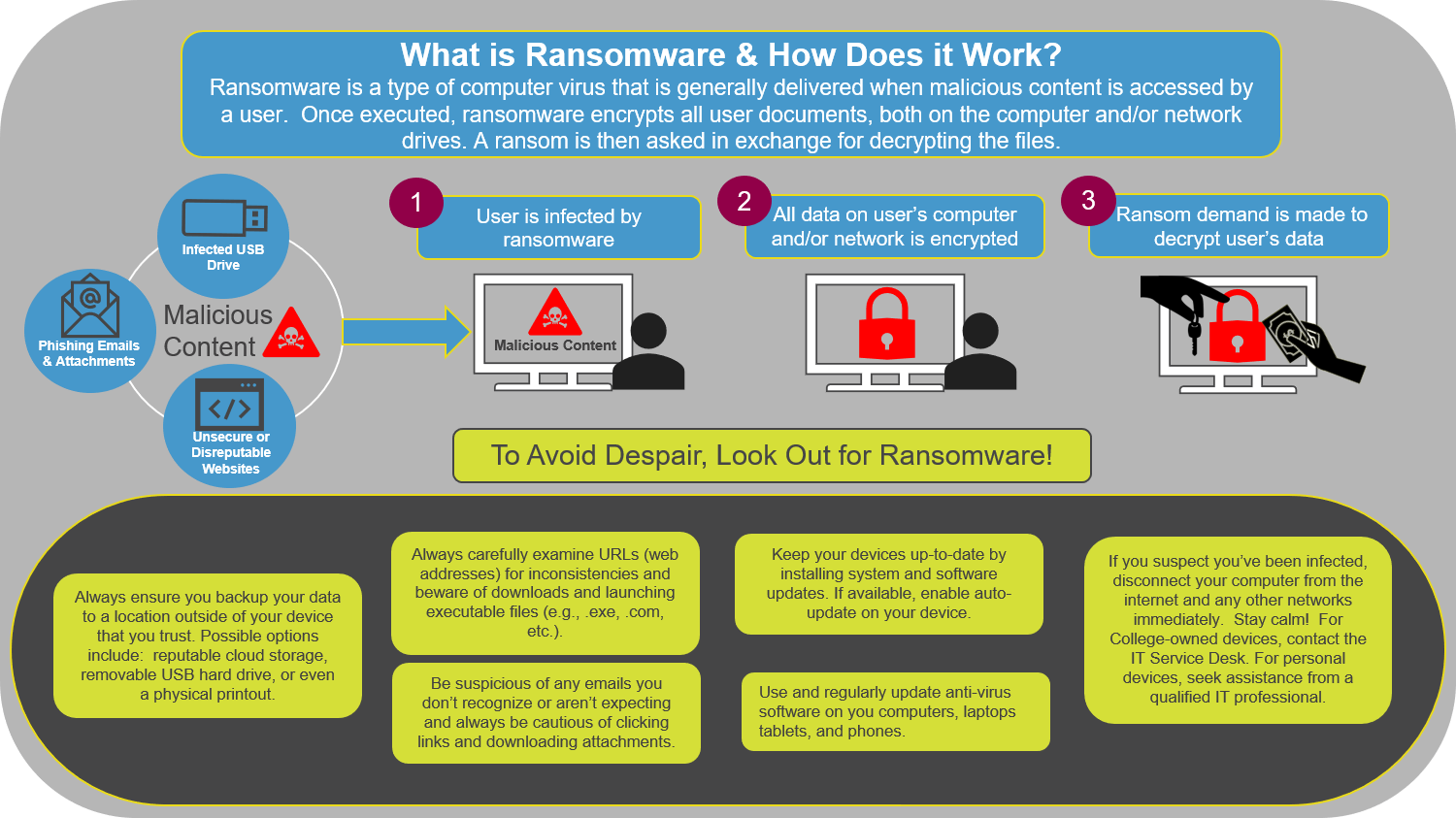
Digital literacy education begins long before children ever type their first search query or log into a shared family tablet. Modern elementary classrooms and living rooms buzz with shared devices, where younger siblings and older students frequently trade screens for homework, video streaming, and casual gaming. Within these shared digital spaces, children often encounter confusing pop-ups, locked screens, or strange warnings that mimic a digital roadblock. Adults frequently search for tools like a free printable define ransomware in computer for kids to help demystify these complex security concepts for developing minds. Translating technical vocabulary into age-appropriate lessons prevents panic and builds lasting technological resilience. Rather than relying on fear-based warnings, educators and caregivers find success when teaching digital safety as a practical life skill. Equipping children with clear mental models turns abstract cybersecurity threats into manageable concepts they can easily understand and remember. Related guide: Teachers Of Grades 9–12 Should Expand Internet Safety Instruction To Include Which Of The Following Topics?.
💡 Educational Key Takeaways:
- Core Skill: Structured Define Ransomware In Computer For Kids focused on developing pencil grip, stroke control, and early literacy/math confidence.
- Target Scope: Suited for homeschoolers, preschool, kindergarten, and elementary learners.
- Best Recommendation: Practice 10–15 minutes daily with ergonomic writing tools to reinforce muscle memory without hand fatigue.
What This Printable Covers
Complex cybersecurity terminology often alienates young learners unless it is broken down into relatable metaphors. This educational resource approaches advanced topics by comparing digital locks to physical lockers, keys, and trusted adult supervisors. Children examine why keeping software updated matters and how mysterious digital demands require immediate adult intervention. It sounds simple, and that’s the point. The worksheet focuses heavily on protective habits, such as recognizing unexpected screen freezes, avoiding random link clicks, and maintaining open communication channels with teachers or guardians. Young learners also discover that asking for help never leads to trouble, even if they accidentally clicked something unusual. According to the Federal Trade Commission, children frequently navigate digital environments where accidental clicks lead to unexpected pop-ups, making early guidance essential for peaceful screen time.
Key Learning Outcomes
Working through these guided activities helps students identify abnormal computer behavior without inducing anxiety. Learners practice spotting the difference between routine software notifications and suspicious digital locks that demand attention. Another vital outcome involves reinforcing the rule of stopping and telling a trusted adult immediately. Here’s what makes this resource different: it shifts the focus away from technical jargon and onto human agency. Children learn that they possess the power to pause, step away from the screen, and seek assistance whenever a device behaves strangely. This foundation supports broader explorations found within comprehensive Internet and Digital Safety curricula used in modern classrooms.
How to Use This Printable
Classroom integration works best during morning meeting discussions, computer lab onboarding sessions, or small-group rotations. Educators can distribute these materials ahead of digital research projects to establish ground rules for safe browser navigation. At home, caregivers often use the activity during weekend screen time talks, sitting side-by-side with children to discuss what happens when games or educational apps freeze up unexpectedly. Working through the prompts together creates a low-pressure environment for children to ask questions about strange messages they might have seen during in-game chat sessions or video platform browsing. The specific skill practiced here is situational awareness: noticing when a device stops functioning normally and knowing the precise steps to take next. Supplementary classroom tools and related printables are readily available across various online hubs, including specialized Worksheets designed for elementary learners.
Practical Tips for Parents and Teachers
Facilitating these conversations requires a calm demeanor and a supportive tone that empowers rather than restricts. Adults should validate children’s observations, acknowledging that modern technology can indeed look confusing or overwhelming at times. Role-playing scenarios provide immense value; practicing what to say when a screen acts strangely builds muscle memory for real-world moments. Emphasizing that children are never in trouble for reporting an uncomfortable digital encounter remains paramount for trust-building. Consistent reinforcement turns abstract warnings into second nature, ensuring kids feel confident rather than fearful when navigating shared household computers.
Age-Appropriate Recommendations
Tailoring digital citizenship concepts to specific developmental stages ensures maximum comprehension and engagement. For kindergarteners and first graders, lessons remain centered on basic boundaries, such as asking an adult before clicking unfamiliar buttons or downloading new apps. Second and third graders can explore foundational concepts about passwords and private information, while fourth and fifth graders are ready to discuss how malicious software operates on a conceptual level. Aligning these lessons with the Common Sense Education Digital Citizenship Curriculum provides a structured pathway for progressive learning. According to the Pew Research Center, a vast majority of children access digital devices at increasingly young ages, highlighting the need for age-graded educational interventions that evolve alongside student maturity.
Young children frequently encounter digital prompts and shared screen environments, making early habit-building essential for safe exploration. — Pew Research Center
Frequently Asked Questions
Clear answers to common inquiries help educators and families implement these safety lessons smoothly across diverse learning environments.
Explore More Free Kids Online Safety Printables
Expanding a digital citizenship library ensures children continuously encounter positive reinforcement regarding technology use. Educators can browse additional resources, including engaging Coloring Pages that turn abstract security rules into creative art projects. Integrating these materials alongside structured lessons on Online and Digital Safety builds a comprehensive, well-rounded foundation for every young digital citizen.
Developmental Milestone & Activity Table
| Development Stage | Recommended Daily Duration | Primary Learning Objective |
|---|---|---|
| Preschool & Pre-K | 10 – 15 Minutes | Pencil grip development & basic pre-stroke lines |
| Kindergarten | 15 – 20 Minutes | Letter/number formation & spatial line awareness |
| Early Elementary (Grade 1–2) | 20 – 30 Minutes | Fluency, sentence construction & neatness |
Images References