Introduction
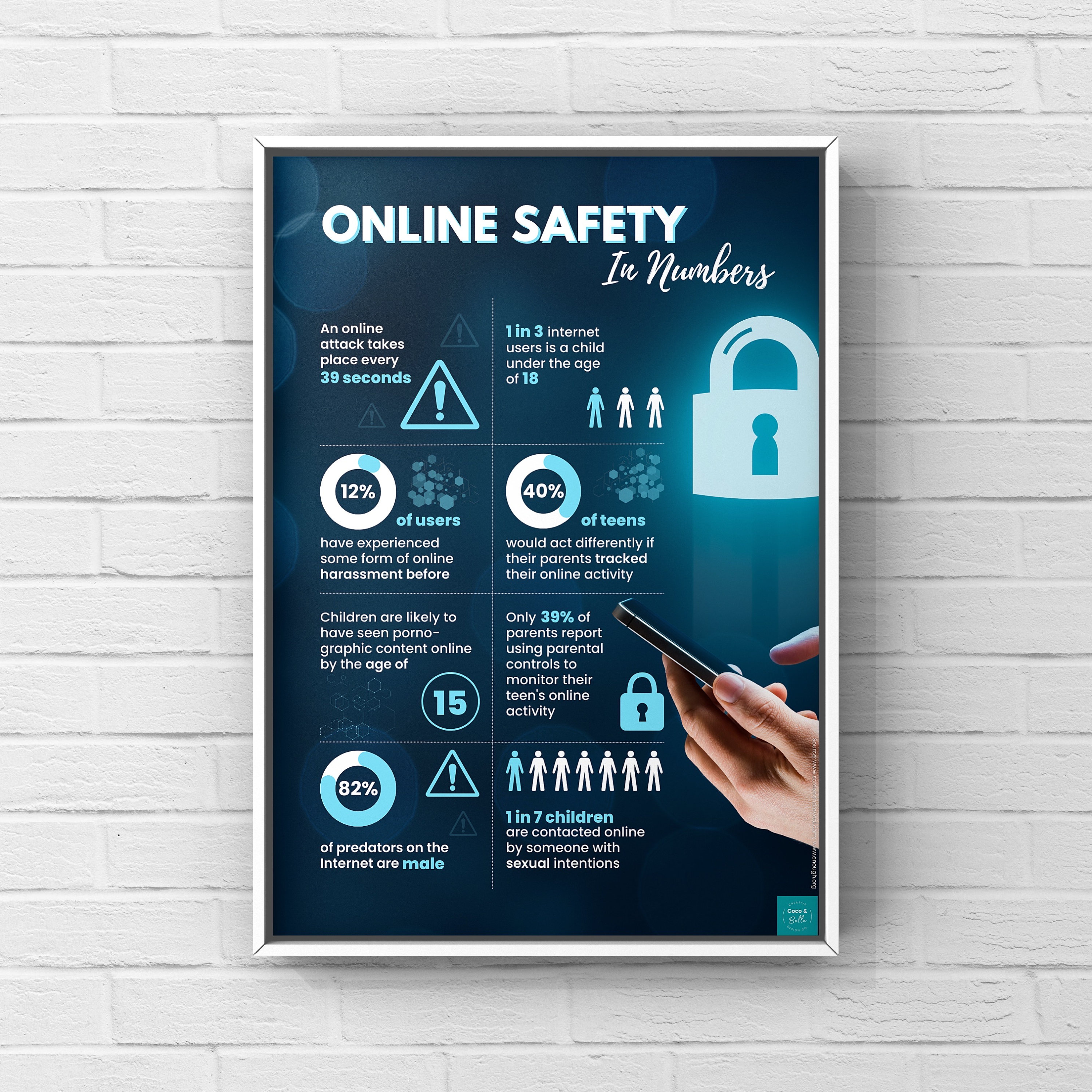
Children encounter digital environments long before they fully grasp the underlying machinery of computers. A shared household tablet or a school laptop often becomes a portal to games, videos, and interactive learning tools. Yet, this early access brings unique vulnerabilities. Young learners frequently cross paths with confusing pop-ups, misleading download buttons, or unexpected software behaviors while navigating favorite sites. Explaining these hidden digital threats requires moving beyond technical jargon to focus on everyday protective habits. Educators and caregivers frequently look for accessible tools found within the Internet and Digital Safety category to make abstract concepts concrete for early learners. Introducing children to the idea of unwelcome digital guests helps demystify computer quirks without causing panic. Framing digital safety as a manageable skill set turns potential anxiety into curiosity and confidence.
💡 Educational Key Takeaways:
- Core Skill: Structured What Is A Malware Example For Kids focused on developing pencil grip, stroke control, and early literacy/math confidence.
- Target Scope: Suited for homeschoolers, preschool, kindergarten, and elementary learners.
- Best Recommendation: Practice 10–15 minutes daily with ergonomic writing tools to reinforce muscle memory without hand fatigue.
What This Printable Covers
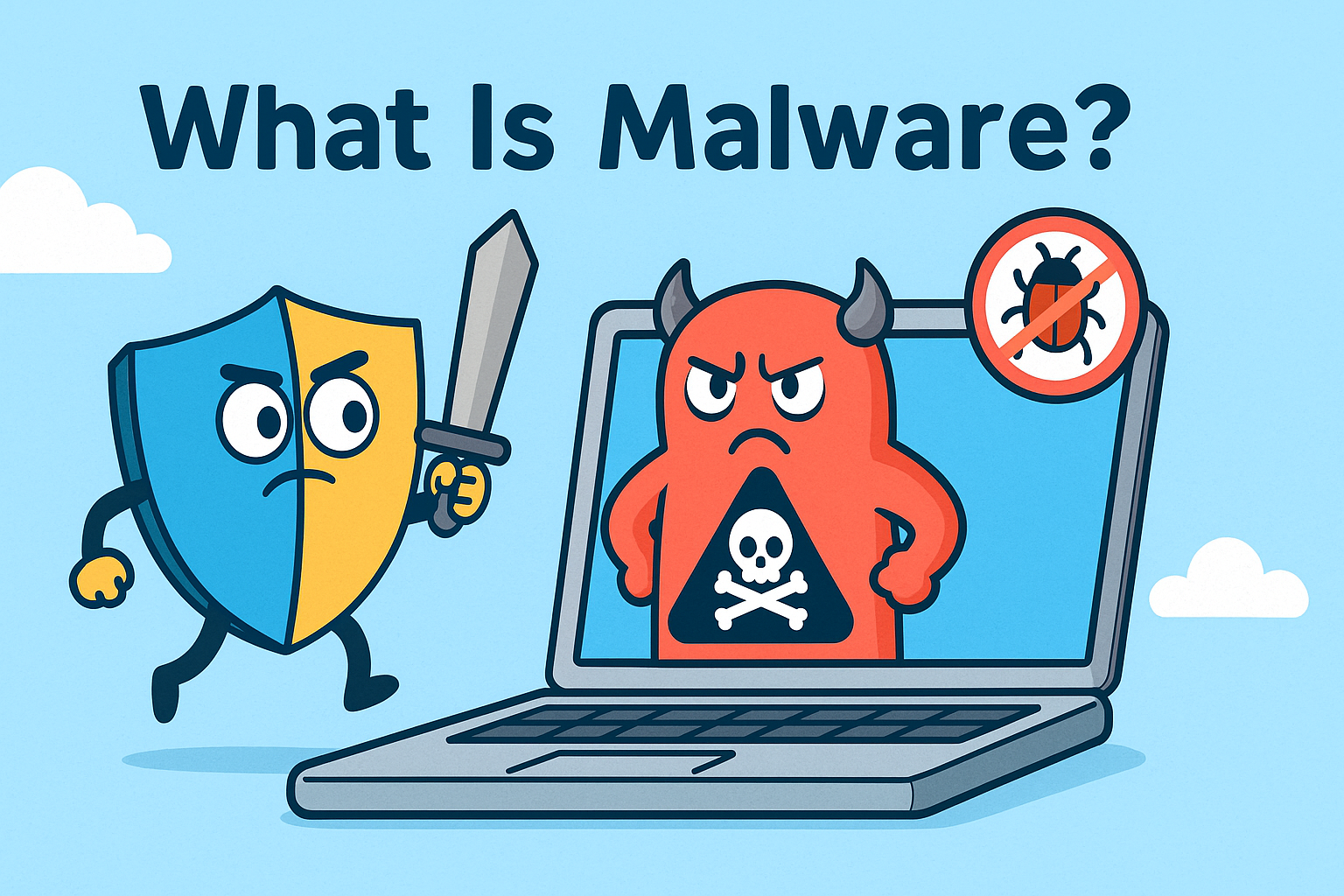
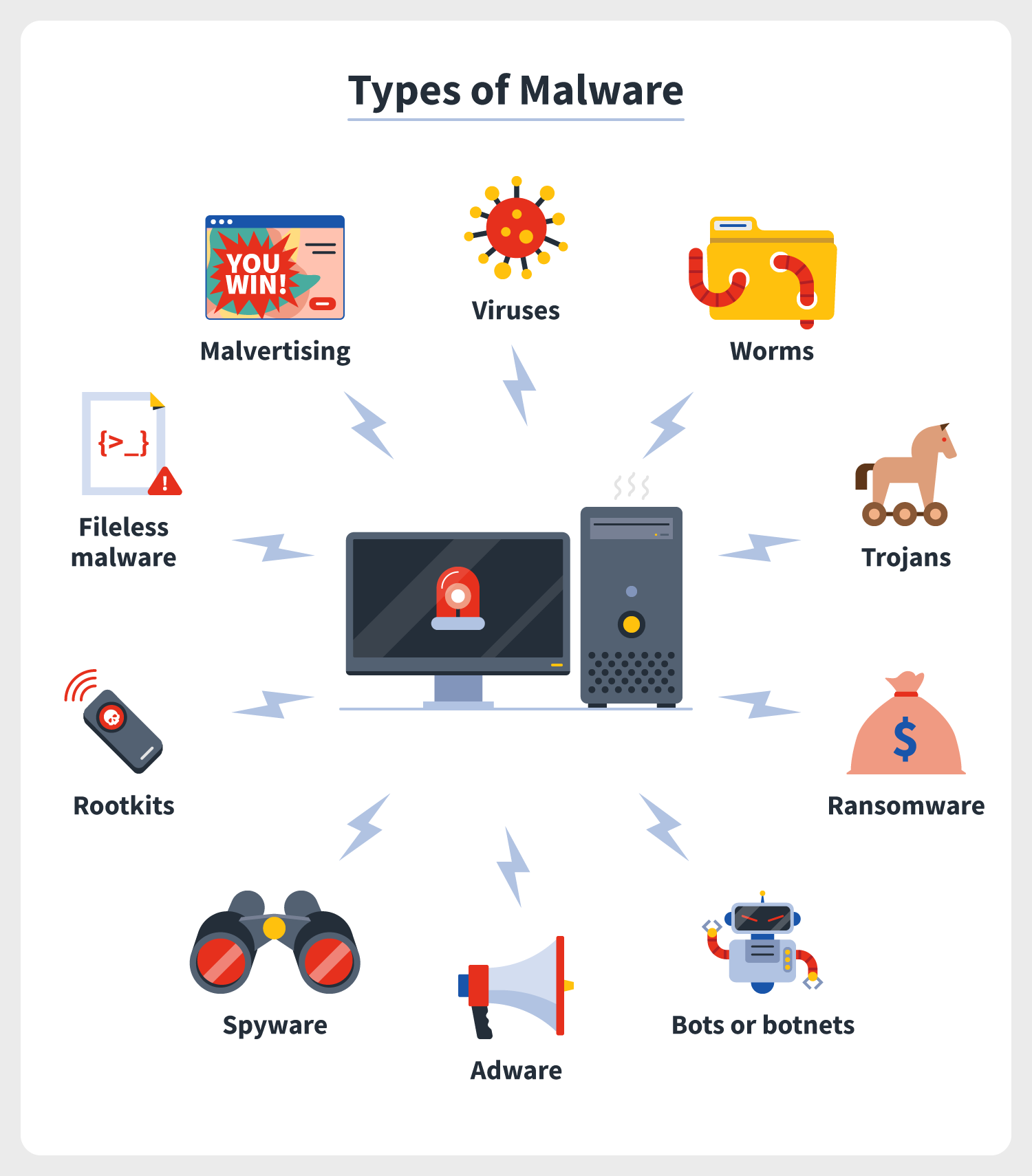
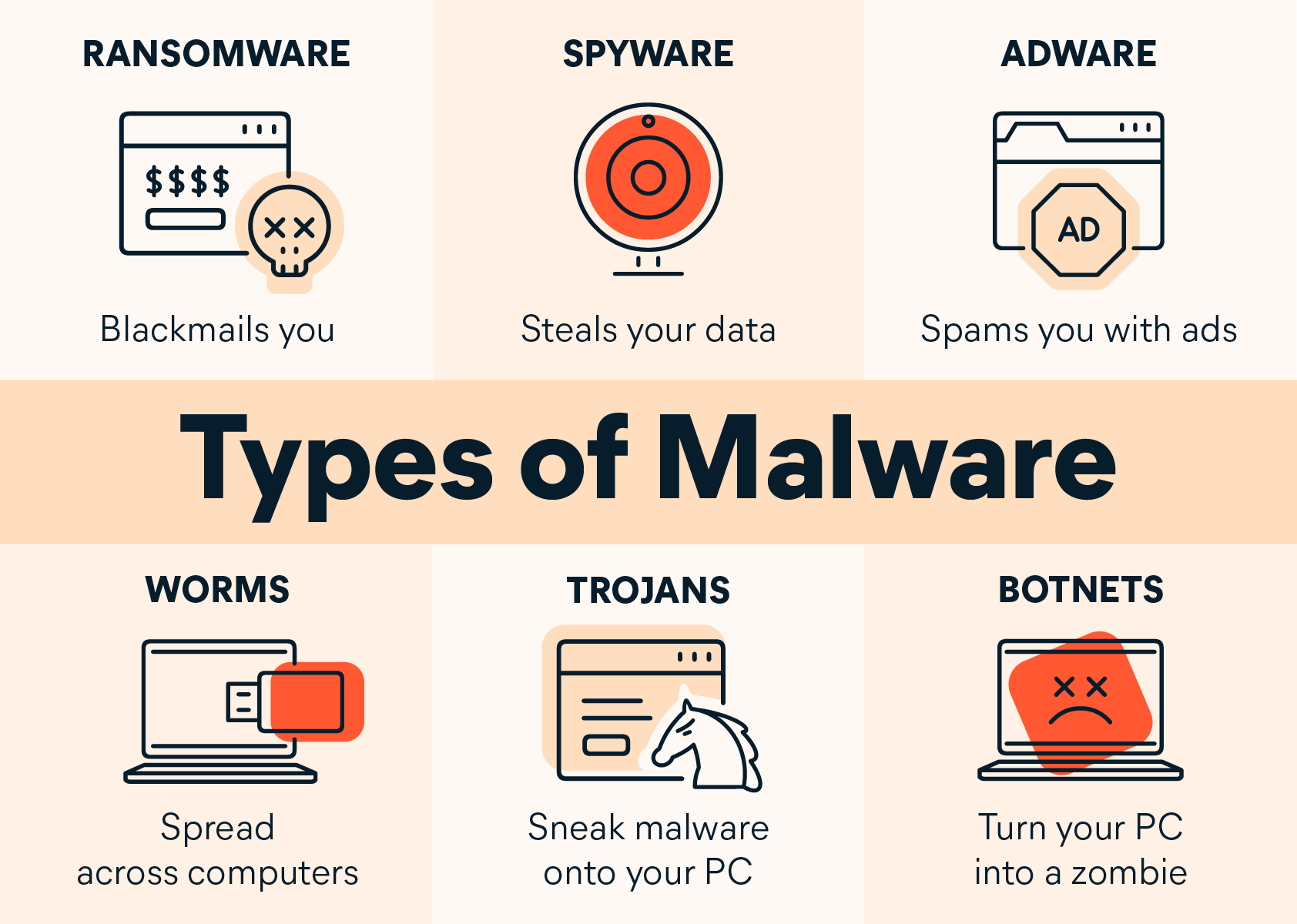
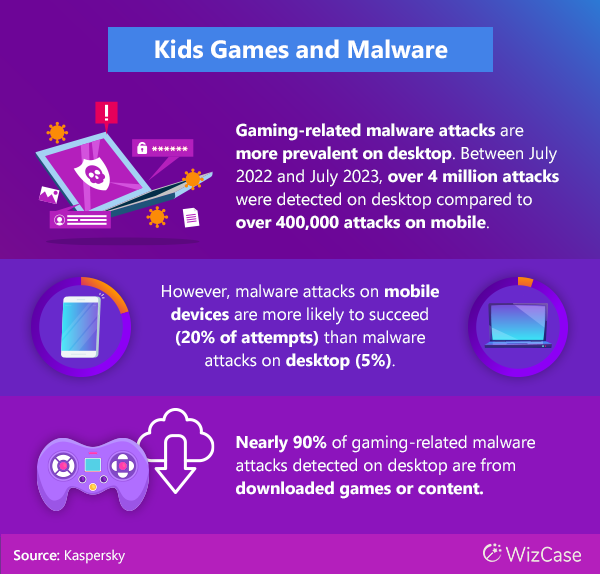
The free printable focuses on demystifying malicious software through relatable analogies and clear visual scenarios. Instead of using intimidating technical definitions, the activity sheet introduces software as digital instructions that sometimes behave mischievously. It highlights common triggers, such as clicking flashy banner ads promising free game items or downloading files without adult permission. Children explore scenarios where a computer or tablet starts acting strangely, running slowly, or displaying unexpected messages. This foundation aligns closely with the practical exercises available throughout the Worksheets collection, offering structured guidance for elementary learners. Understanding these warning signs empowers youngsters to pause and seek guidance rather than trying to fix mysterious device glitches alone.
Key Learning Outcomes
Participants develop a clear mental model of how unwanted programs enter shared devices. Recognizing that not every button on a screen leads to a safe destination is a critical cognitive leap for primary school students. According to Common Sense Media research regarding youth media habits, children frequently encounter deceptive advertising and unexpected prompts during routine online play. Learners practice identifying deceptive links and learn the golden rule of digital pause: stopping before clicking unfamiliar pop-ups. Another vital outcome involves reinforcing the absolute truth that children are never in trouble for reporting an uncomfortable screen moment or a strange device behavior. Establishing this open communication channel proves far more effective than any blocklist or filter. Related guide: Teachers Of Grades 9–12 Should Expand Internet Safety Instruction To Include Which Of The Following Topics?.
How to Use This Printable
Implementing this activity requires zero prior technical expertise from the adult facilitator. Printing out the pages invites a collaborative, low-pressure conversation at the kitchen table or during a classroom computer lab orientation. Adults can read the scenarios aloud, asking children what they would do if a character on the page encountered a strange warning box. It sounds simple, and that’s the point. Grounding discussions in fictional scenarios allows young minds to analyze choices objectively before facing them in real-time gaming or video streaming environments. Educators often pair these printables with physical device inspections, showing learners how antivirus icons look on a screen so they can spot legitimate system tools.
Practical Tips for Parents and Teachers
Consistency between home and school environments reinforces healthy digital routines. Adults should model calm problem-solving when technology inevitably glitches, showing that unexpected pop-ups require a trusted adult’s eyes rather than a hurried click. Designating a specific time to review safety concepts keeps the dialogue ongoing rather than reactive. Furthermore, establishing clear boundaries around downloading new apps or game modifications prevents accidental exposure to risky files. Exploring additional materials in the Online and Digital Safety library provides further strategies for maintaining secure, balanced device habits across different age groups.
Age-Appropriate Recommendations
Tailoring the conversation ensures comprehension matches developmental stages. For kindergarteners and first graders, keep explanations brief: computers can catch digital colds from bad links, just like people catch germs. Second and third graders can handle discussions about keeping personal information private and recognizing fake reward offers in multiplayer chat rooms. By upper elementary grades, students benefit from learning about strong passwords and the mechanics behind phishing attempts. This progression supports the ISTE Standards for Students by cultivating digital agency and responsible participation in networked environments.
According to Pew Research Center findings on youth technology access, a vast majority of school-age children interact with mobile devices and shared tablets daily, making early digital literacy interventions essential for safe navigation. — Pew Research Center
Frequently Asked Questions
Getting started with these safety resources is straightforward. Parents and educators often wonder about file formats, learning objectives, and alignment with established organizational guidance. Reviewing these common inquiries helps clarify how to maximize the educational impact of the printables during lessons or family discussions.
Explore More Free Kids Online Safety Printables
Expanding the digital citizenship curriculum involves incorporating diverse teaching formats that keep students engaged. Creative exercises such as those found in the Coloring Pages section allow younger children to process complex technical concepts through artistic expression and tactile engagement. Combining visual art with guided discussions cements positive online habits for the long term. Every conversation builds a sturdier foundation, ensuring young digital citizens navigate virtual spaces with awareness, resilience, and curiosity.
Developmental Milestone & Activity Table
| Development Stage | Recommended Daily Duration | Primary Learning Objective |
|---|---|---|
| Preschool & Pre-K | 10 – 15 Minutes | Pencil grip development & basic pre-stroke lines |
| Kindergarten | 15 – 20 Minutes | Letter/number formation & spatial line awareness |
| Early Elementary (Grade 1–2) | 20 – 30 Minutes | Fluency, sentence construction & neatness |
Images References