Why Visual Learning Protects Kids Online
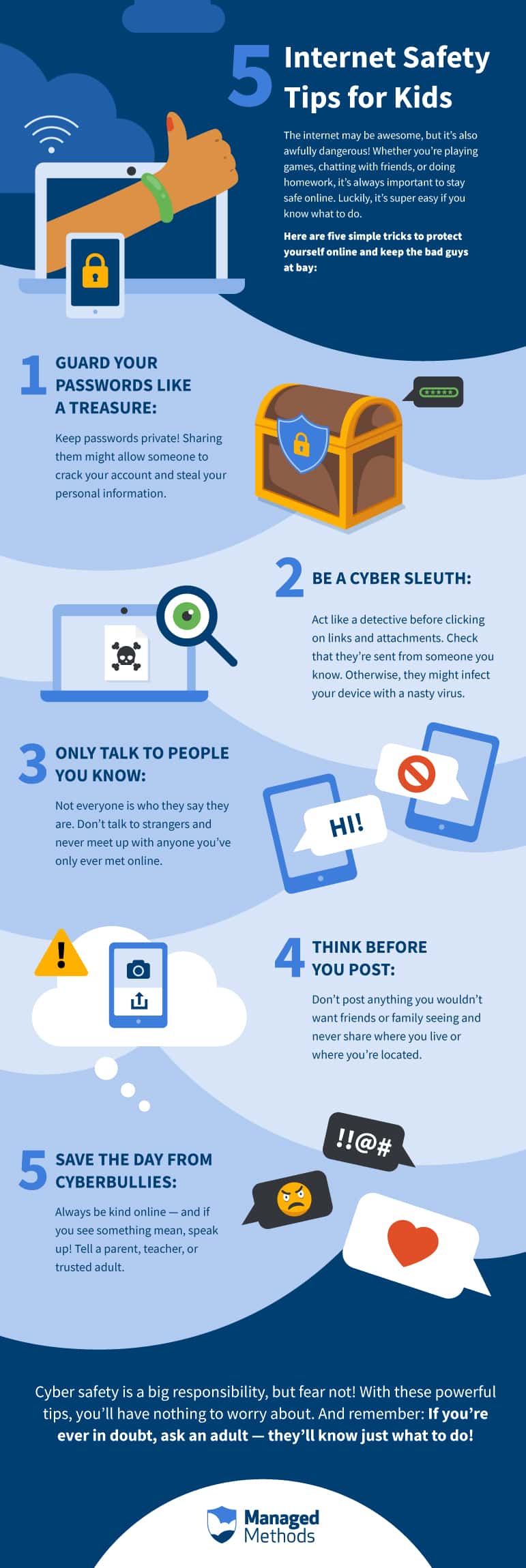
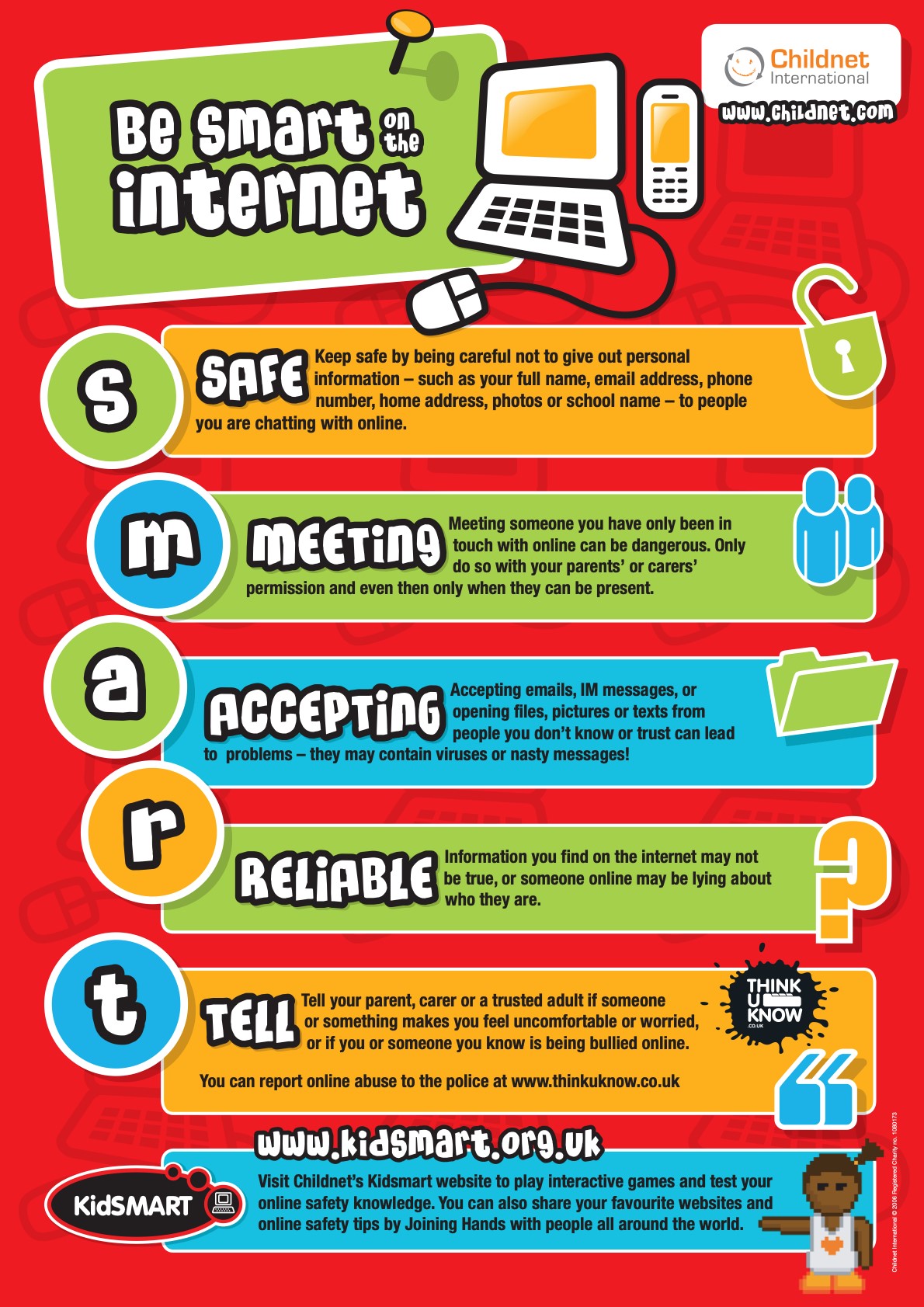
Students navigate a complex digital landscape daily, moving between school-issued laptops, home gaming consoles, and personal smartphones. To help children process complex cybersecurity concepts without becoming overwhelmed, educators and families increasingly rely on infographics. Organizations like ConnectSafely and the Cybersecurity and Infrastructure Security Agency emphasize that clear, highly visual safety reminders help young learners retain crucial rules about privacy, password strength, and respectful communication. Translating abstract data policies into digestible graphic formats empowers students of all ages to recognize digital red flags before a minor click turns into a serious security issue. Related guide: Teachers Of Grades 9–12 Should Expand Internet Safety Instruction To Include Which Of The Following Topics?.
💡 Educational Key Takeaways:
- Core Skill: Structured Info Grapgh Internet Safety For Student focused on developing pencil grip, stroke control, and early literacy/math confidence.
- Target Scope: Suited for homeschoolers, preschool, kindergarten, and elementary learners.
- Best Recommendation: Practice 10–15 minutes daily with ergonomic writing tools to reinforce muscle memory without hand fatigue.
Spotting Vulnerabilities Across Devices and Platforms
Whether students are accessing educational modules or exploring social media platforms, adults must understand where technical vulnerabilities intersect with everyday behavior. By examining common risk signals alongside reliable preventive guardrails, parents and teachers can proactively adjust device settings and guide student choices effectively.
| Setting / Context | Common Vulnerability | Practical Safeguard |
|---|---|---|
| Home Devices | Default administrator passwords and disabled content filters allowing unrestricted browsing. | Enable router-level parental controls, update firmware regularly, and enforce managed user profiles. |
| School Chromebooks | Leaving browser sessions unattended in public spaces or sharing login credentials with peers. | Reinforce quick-lock shortcuts, strict password confidentiality, and proper logout habits. |
| Social and Chat Apps | Public profile visibility and direct messaging enabled from unknown users. | Lock accounts to private, disable location sharing, and review settings together using Internet and Digital Safety guidelines. |
Consistency between the classroom and the living room is vital for building lifelong digital citizenship. Educators and parents should collaborate to establish predictable routines, such as designating a central charging station in the kitchen overnight to remove late-night device temptation. Furthermore, incorporating visual checklists and interactive elements—like those found in educational Worksheets—allows students to practice safe sharing habits in a low-stakes environment. Adults should also establish a predictable, non-punitive reporting workflow so children know they can approach a trusted adult immediately if they encounter cyberbullying, inappropriate content, or suspicious messages.
As students grow older, they often experiment with browser extensions, virtual private networks, or secret accounts to bypass school and home filters. Instead of relying solely on heavy-handed surveillance, which often drives secretive behavior underground, adults should explain the reasoning behind specific safety policies. Pair your technical filters with calm, periodic check-ins. When students understand that filters exist to protect their personal data and device security rather than just restrict their fun, they are far more likely to cooperate and communicate openly when digital dilemmas arise.
Frequently Asked Questions From Educators and Parents
What age should children start learning about online safety through infographics?
Visual safety concepts can be introduced as early as kindergarten using simple picture-based reminders about keeping personal information private. As children mature into upper elementary and middle school, infographics can transition into more detailed discussions covering phishing, digital footprints, and respectful online communication.
How can teachers reinforce digital safety concepts without adding to instructional time?
Educators can seamlessly integrate digital citizenship concepts into routine lessons by displaying safety posters in the classroom or incorporating quick review activities into homeroom periods. Exploring topics like privacy settings also pairs naturally with broader media literacy units found in Online and Digital Safety curriculums.
What is the best way to handle a student who accidentally clicks a malicious link?
Prioritize calm reassurance over immediate punishment so the child is never afraid to report future mistakes. Instruct them to disconnect from the internet immediately, notify an IT administrator or parent right away, and avoid entering any additional personal credentials on that page.
Explore More Digital Citizenship Resources
Equipping students to navigate the digital world safely requires ongoing collaboration, clear communication, and reliable educational tools. Visit SafeWiredSchools.org to discover additional guides, lesson plans, and actionable strategies designed for modern K-12 learning environments.
Visual Reference Gallery